BoxSeat · Help · Connect your TV to your account English
All help guides
Picture guide · 12 steps · about 5 minutes

Connect your TV to your account

The first time you open BoxSeat TV. You'll use your phone, not the remote, to sign in.

Bigger text One step at a time Print

You'll need

  • BoxSeat TV open on your TV
  • Your phone
  • Your BoxSeat account email and password
Step 1 of 12

Press OK on LET'S GO

BoxSeat checks a few things to get your TV ready.
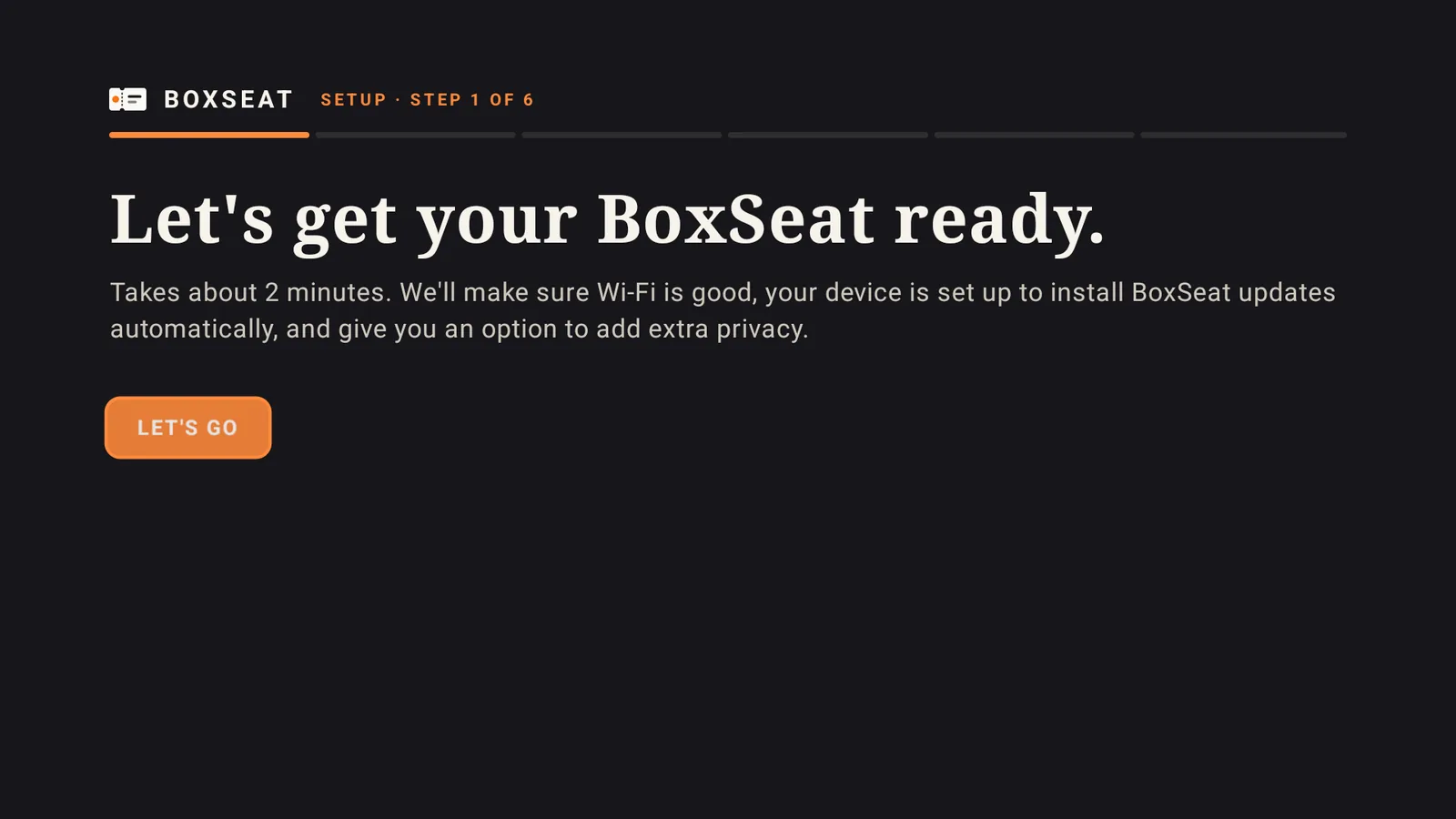
BoxSeat TV setup, step 1 of 6: "Let's get your BoxSeat ready." with an orange LET'S GO button.
Close-up
On your remote Press OK (the middle button) I did this
Step 2 of 12

Press OK on CONTINUE

BoxSeat checks your internet.
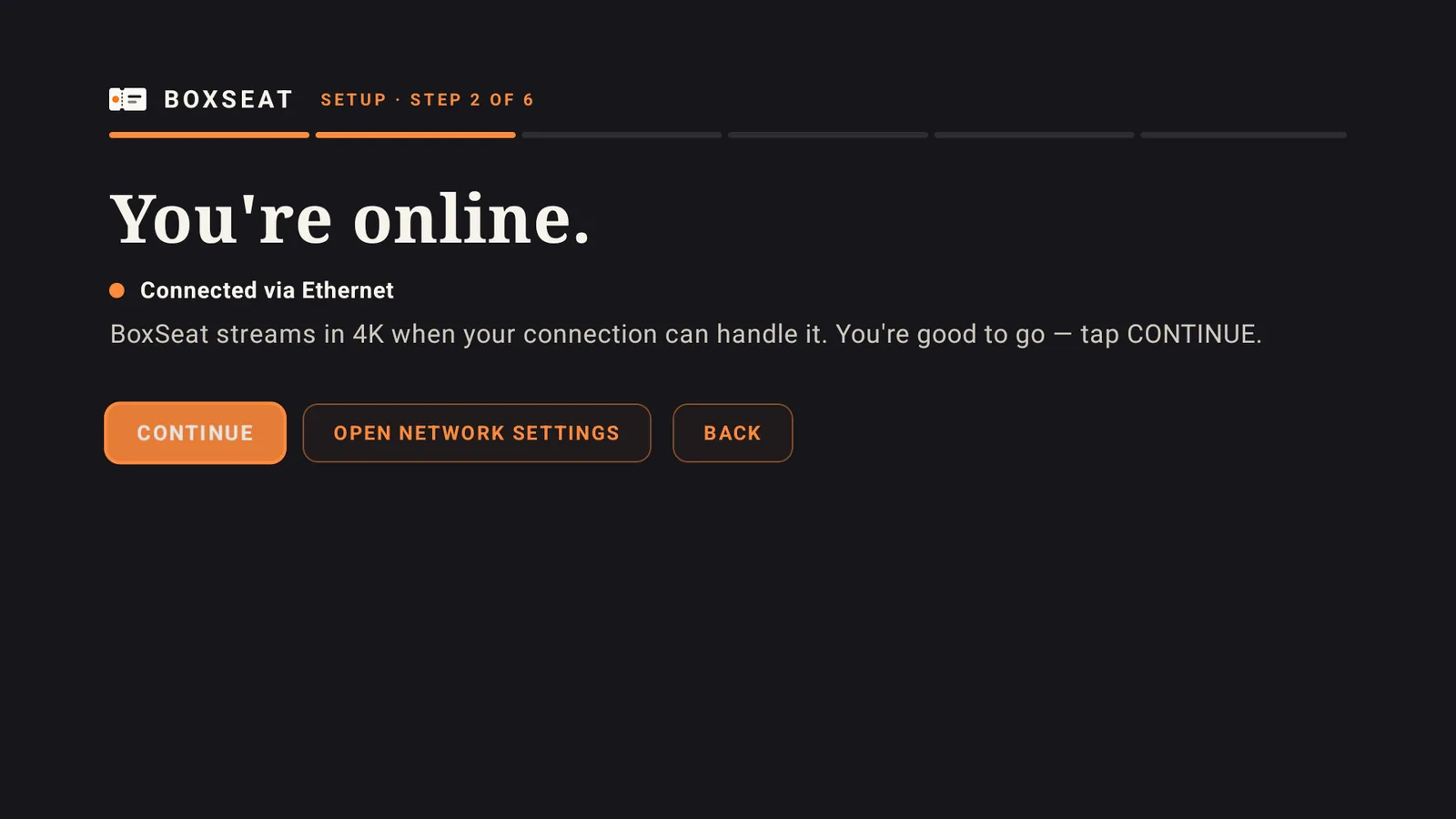
Setup step 2: "You're online." Connected. The orange CONTINUE button is highlighted.
Close-up
On your remote Press OK (the middle button) I did this
Step 3 of 12

Press OK on OPEN THAT SETTING

This lets BoxSeat keep itself up to date, so you never have to reinstall it.
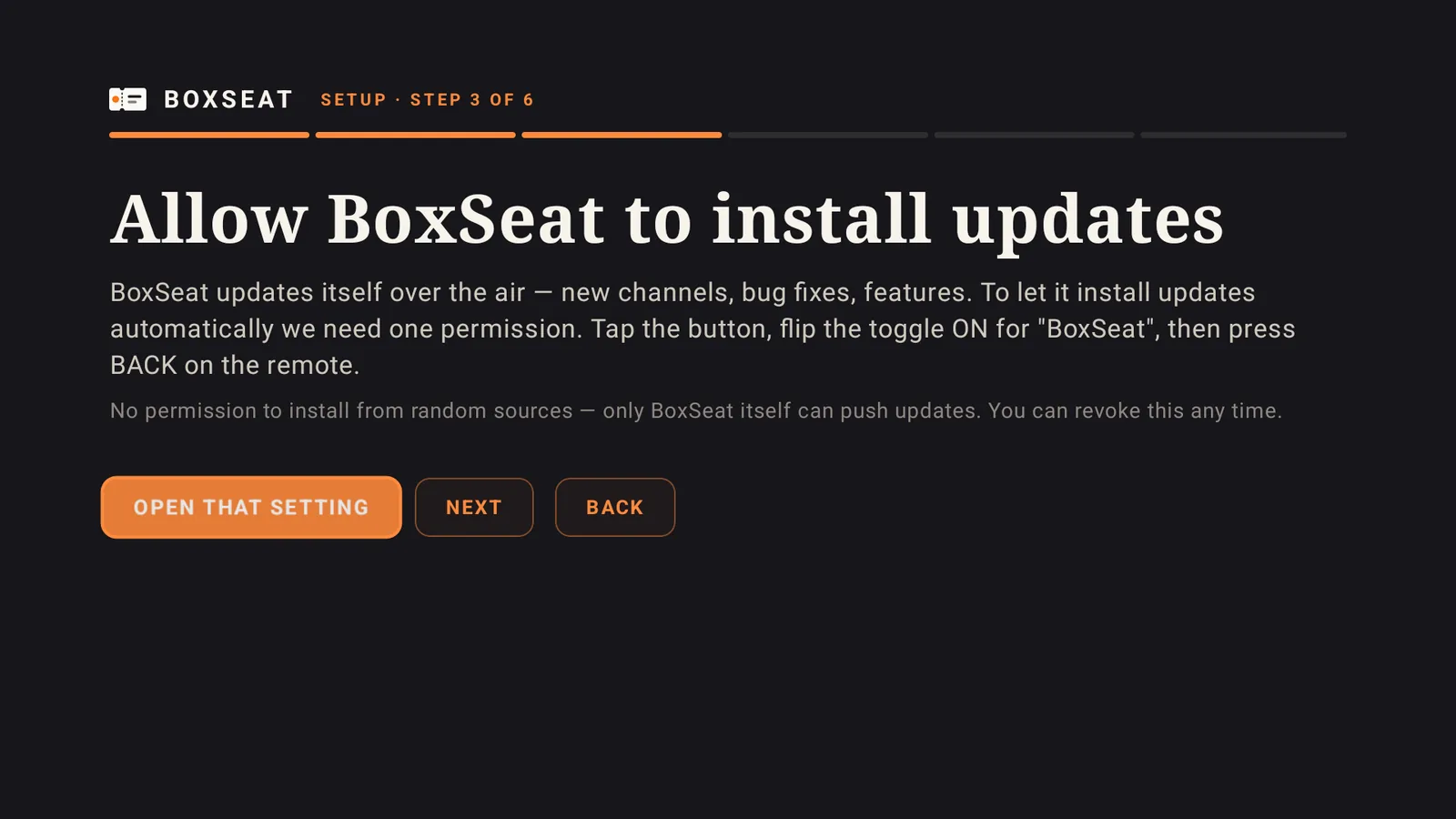
Setup step 3 on a new TV: "Allow BoxSeat to install updates" with an orange OPEN THAT SETTING button, then NEXT and BACK.
Close-up
On your remote Press OK (the middle button)

Does your TV already say Updates allowed? Then just press OK on CONTINUE and skip the next step.

I did this
Step 4 of 12

Turn on BoxSeat, then press Back

Your TV shows a list of apps. Press OK on BoxSeat so its switch turns on. Then press Back on your remote, and press OK on CONTINUE.
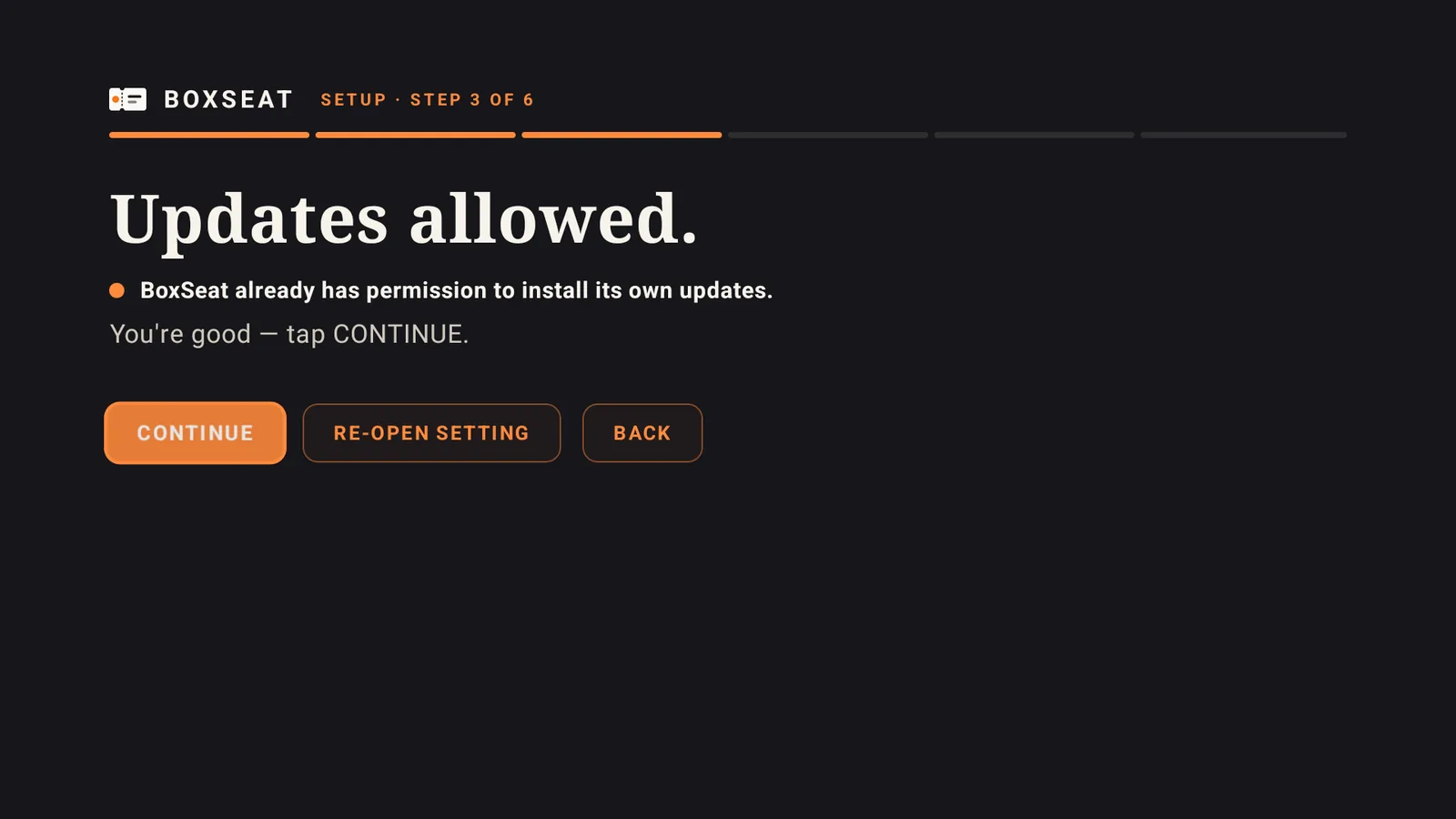
Setup step 3: "Updates allowed." BoxSeat can already update itself. CONTINUE is highlighted.
Close-up
On your remote Press Back

You'll see: Updates allowed.

I did this
Step 5 of 12

Move to SKIP and press OK

Press Right on your remote until SKIP is lit up, then press OK. You don't need this part.
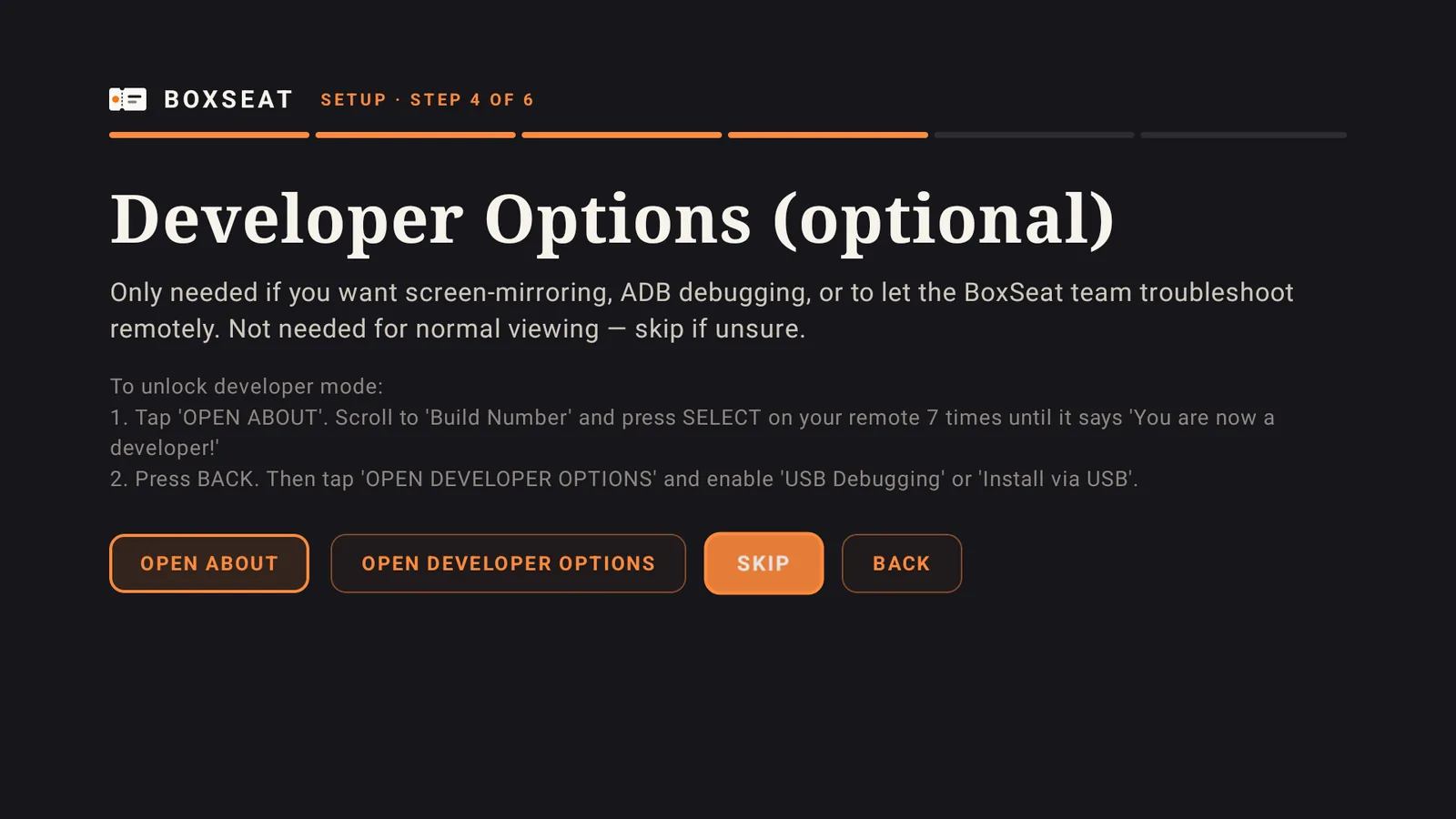
Setup step 4: "Developer Options (optional)." The SKIP button is lit up in orange.
Close-up
On your remote Press Right I did this
Step 6 of 12

Press SKIP again

This part is optional too. Move to SKIP and press OK.
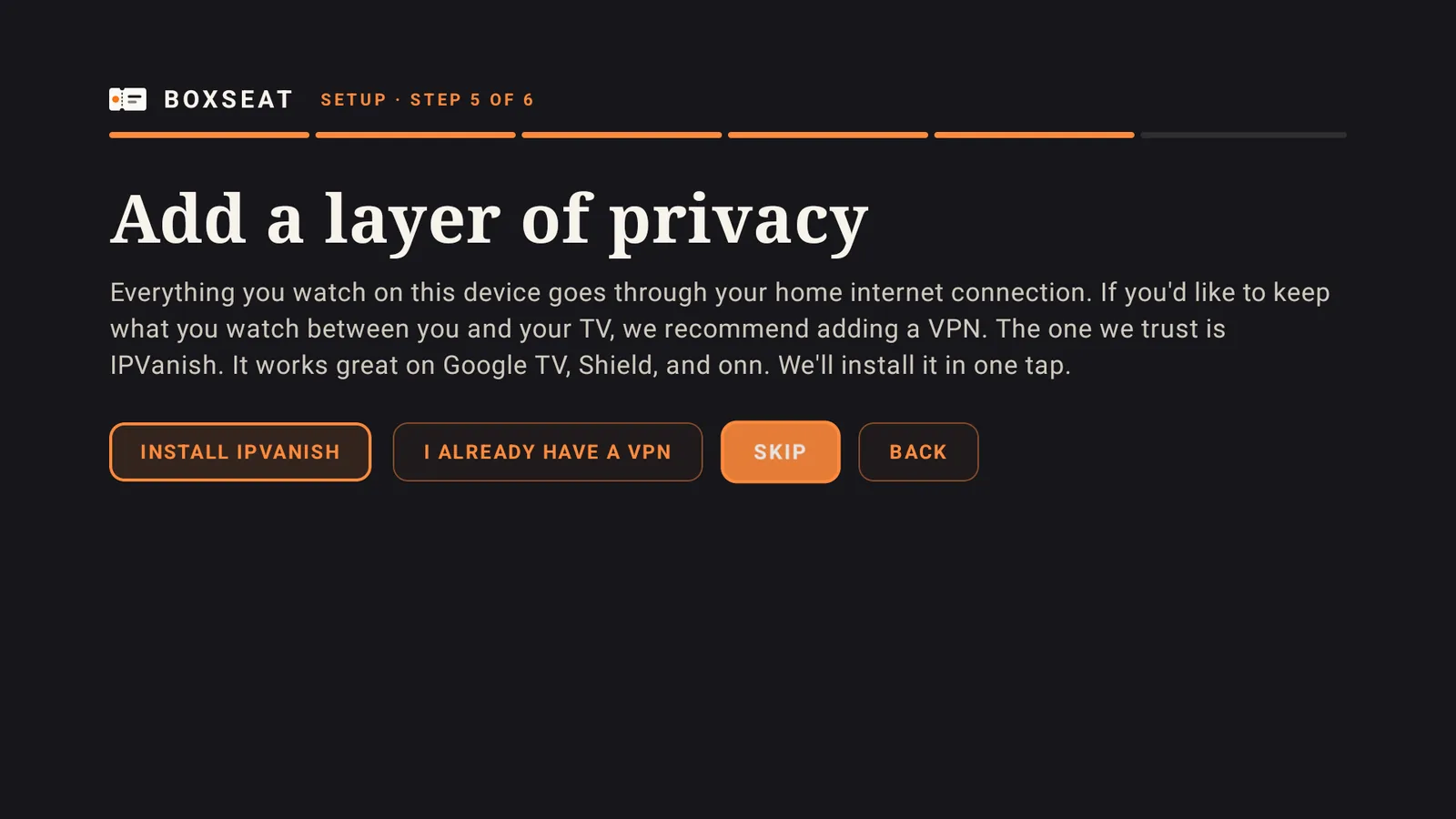
Setup step 5: "Add a layer of privacy." The SKIP button is lit up in orange.
Close-up
On your remote Press Right I did this
Step 7 of 12

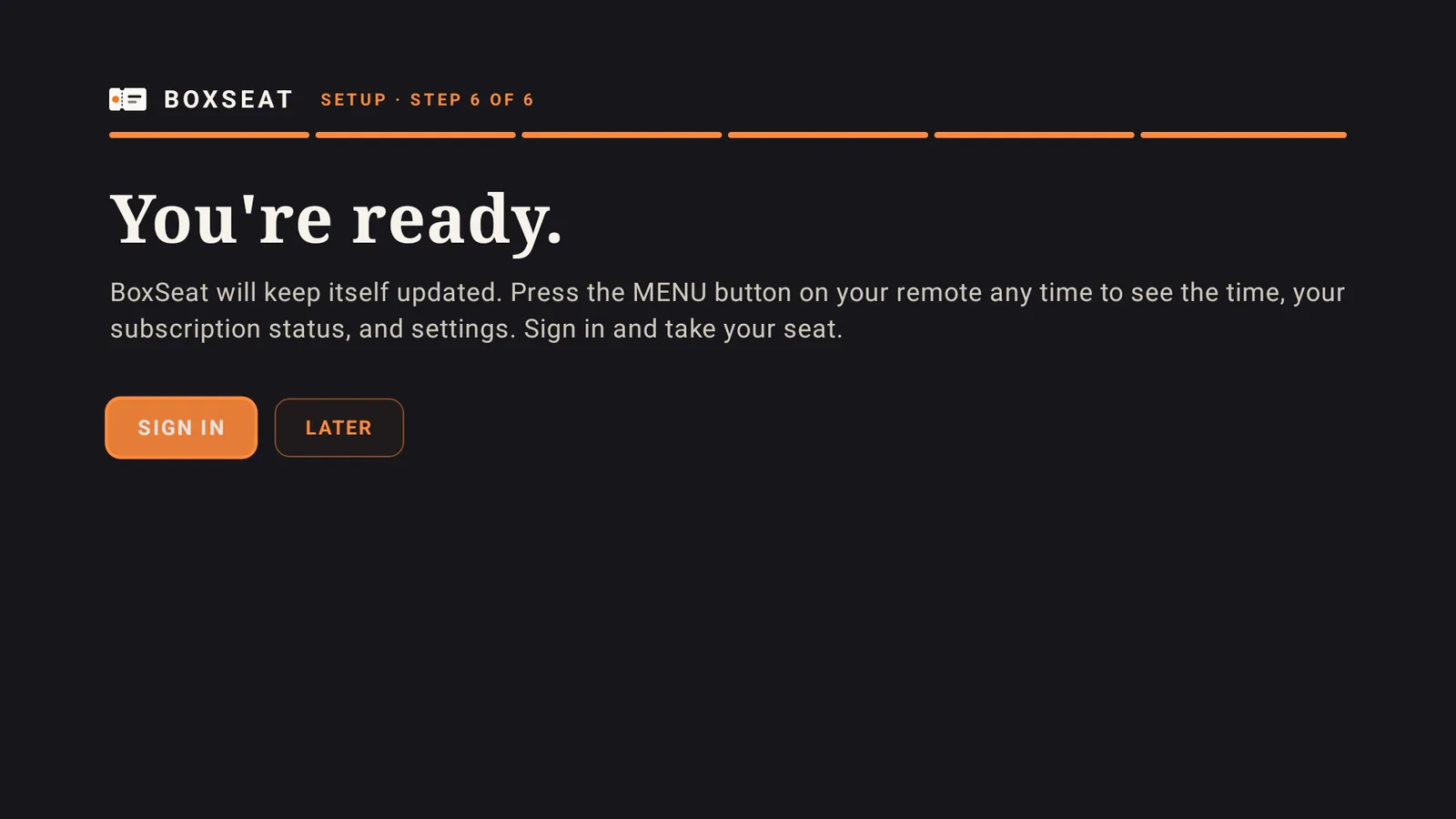
Press OK on SIGN IN

Setup step 6: "You're ready." The orange SIGN IN button is highlighted, next to LATER.
Close-up
On your remote Press OK (the middle button) I did this
Step 8 of 12

Your TV shows a code

Leave this screen on. Now pick up your phone.
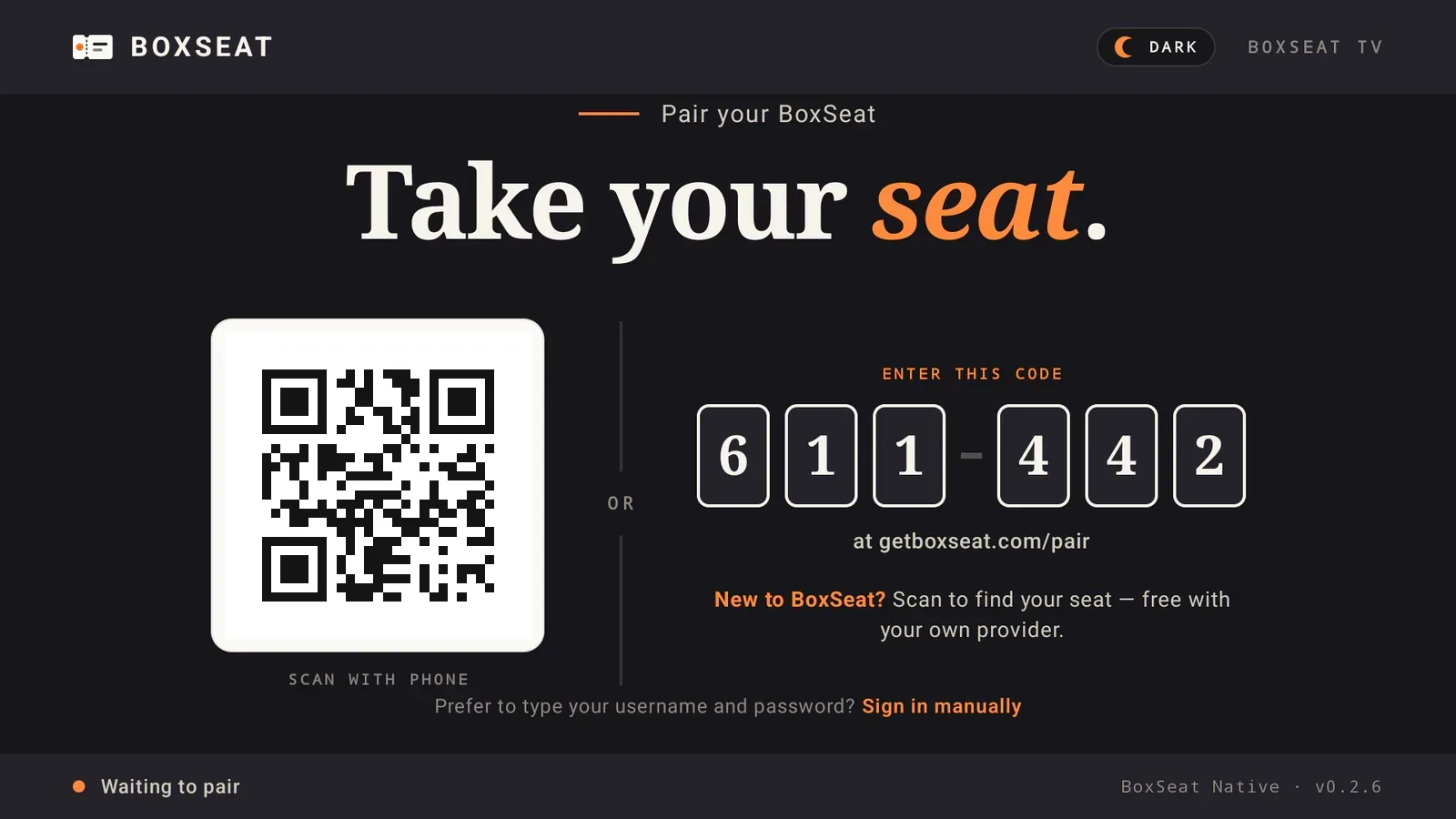
The TV pairing screen, "Take your seat." A QR code on the left and a 6-digit code on the right, with "at getboxseat.com/pair" under it. Example · yours shows its own code
Close-up
I did this
Step 9 of 12

Point your phone's camera at the square

Open your phone's Camera app and point it at the square code on the TV. Tap the link that pops up.

The TV pairing screen, "Take your seat." A QR code on the left and a 6-digit code on the right, with "at getboxseat.com/pair" under it. Example · yours shows its own code
Close-up

No camera? On your phone, go to getboxseat.com/pair and type the 6 numbers from the TV.

I did this
Step 10 of 12

Sign in on your phone

Type the email and password for your BoxSeat account, then tap Enter.
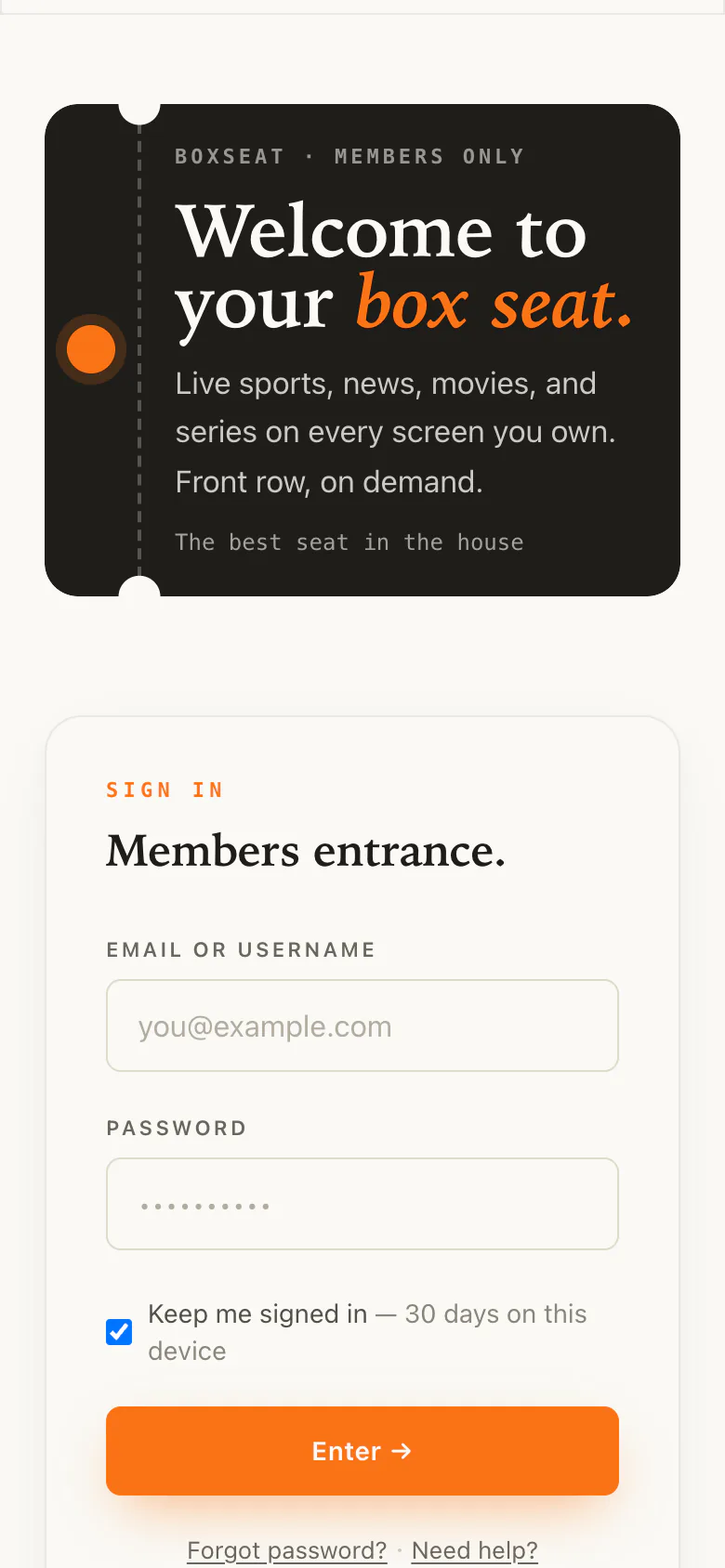
The BoxSeat sign-in page on a phone: email or username, password, and an orange Enter button. I did this
Step 11 of 12

Check the numbers, then tap Pair as

Make sure the numbers on your phone match your TV. Then tap Pair as (with your name).
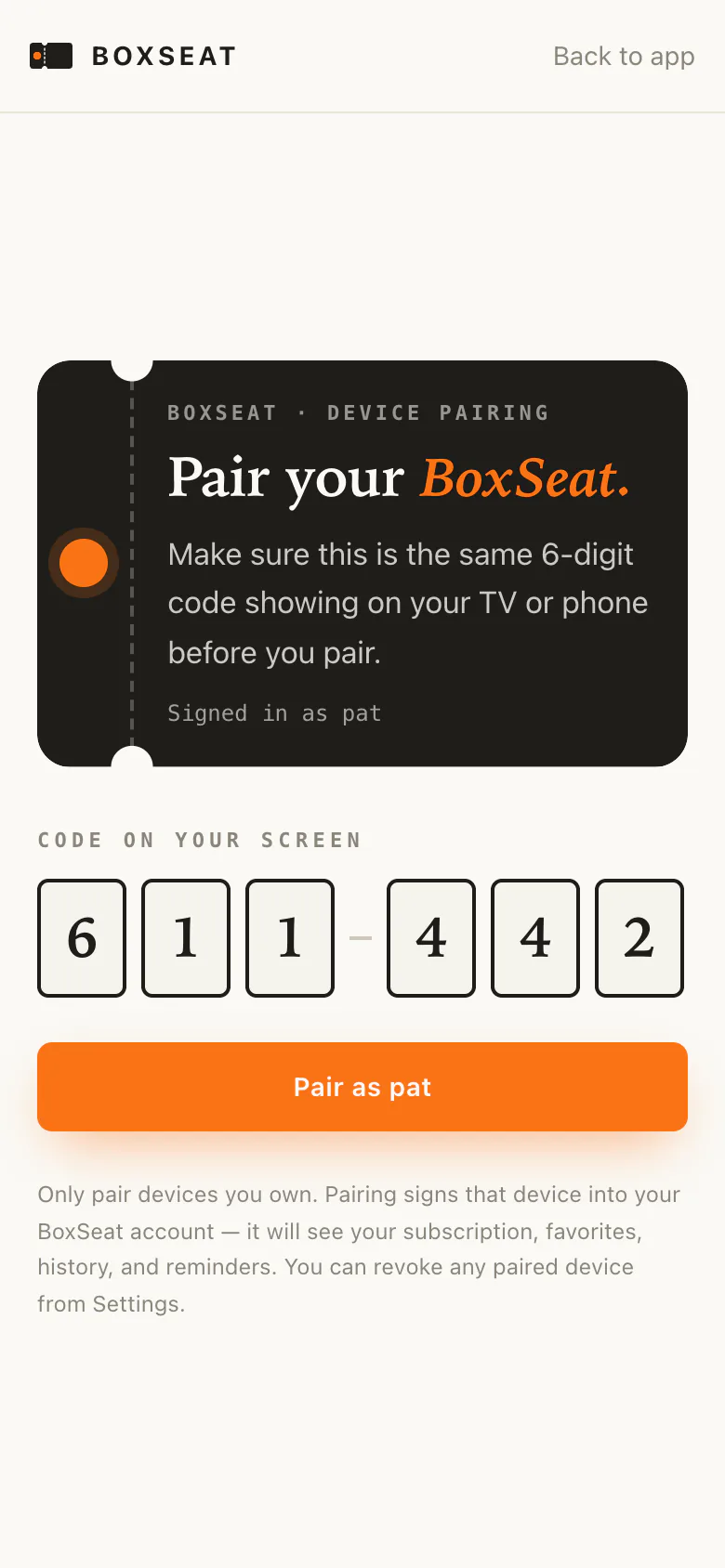
The pair page after scanning the TV's QR code: the code shows in big boxes, above an orange Pair button. I did this
Step 12 of 12

That's it. Look at your TV

Your TV signs in by itself. You never have to type on the TV.
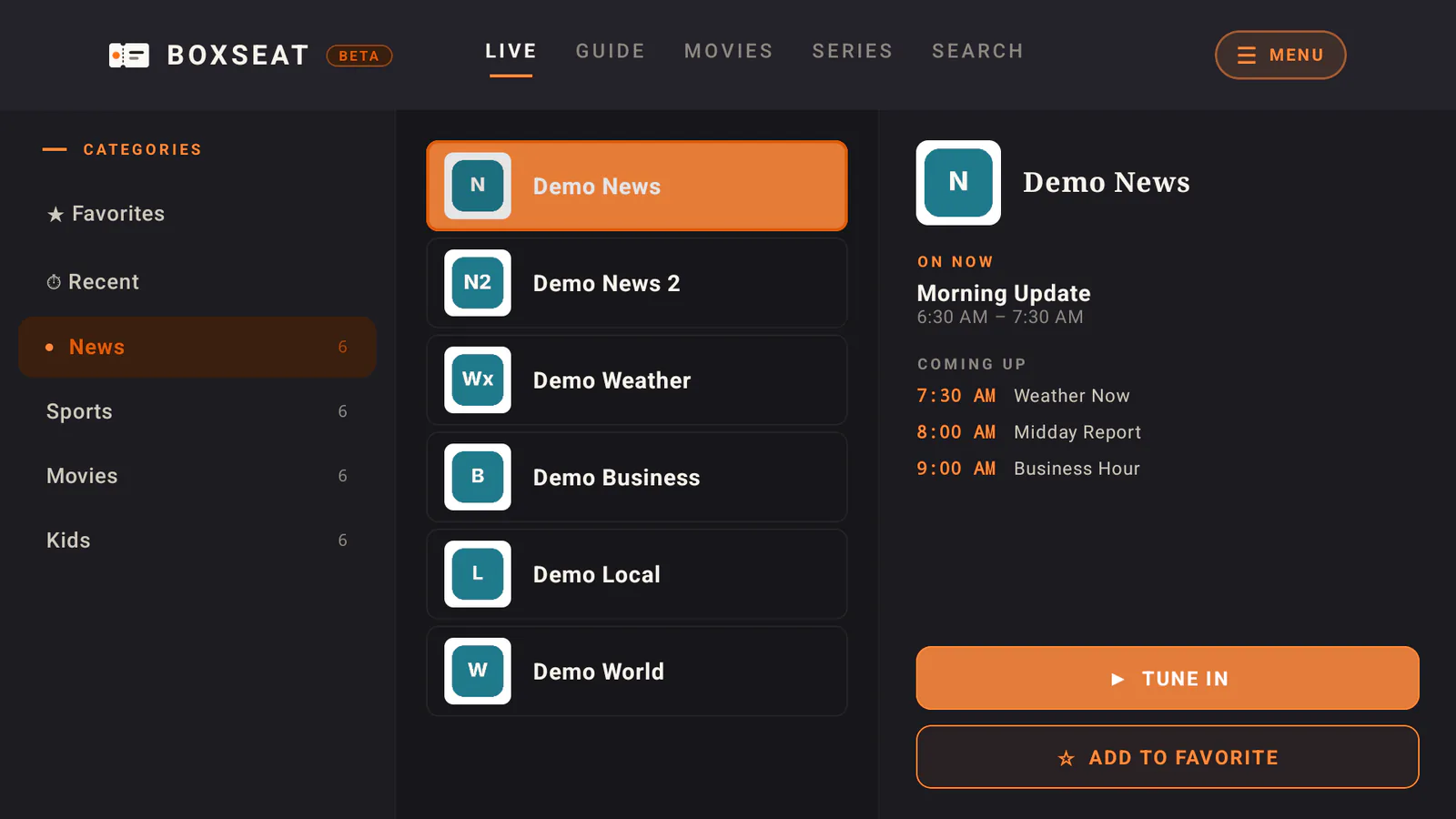
The BoxSeat TV home screen: tabs across the top (LIVE, GUIDE, MOVIES, SERIES, SEARCH), categories on the left, channels in the middle, and what's on now on the right with a TUNE IN button.

You'll see: BoxSeat's channel list. Press OK on any channel to watch.

Using your own TV provider (General Admission)? Your TV says Finish setup on your phone instead. Scan that code too, and add your provider's login on your phone.

I did this
When you're done

Your TV is connected. Grab the remote and enjoy the best seat in the house.

Picture freezing or buffering? Try these in order. Most of the time the first two fix it. 6 things to try · about 5 minutes

Still stuck? We'll help.

Tell us what you see on your screen. A real person answers every message.

Ask the Usher Write to us

Or email support@getboxseat.com

Here 24/7 Ask the Usher